Photograph disk order and drive letters
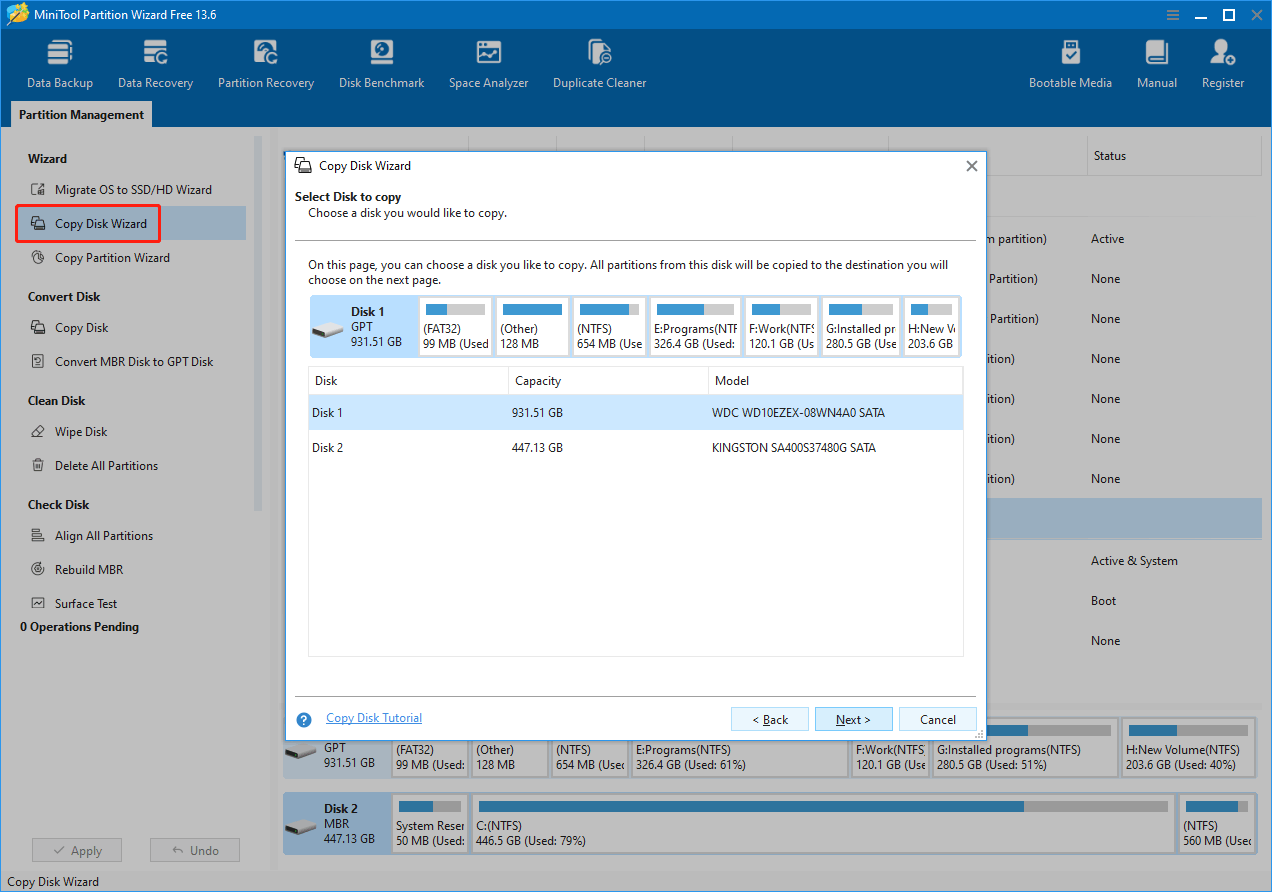
Partition 1 on Disk 0 is not always C:. Note OEM, recovery, and EFI blocks so you never move the wrong edge when free space is tight.
 Disk layout hub
Partition toolkit
Partition managers help you visualize disks, queue operations, and apply changes with intention. This site collects practical guides, common failure modes, and recovery ideas so you stay in control.
Map
Disk map and pending operations list
Toolkit
Resize, move, merge, copy, and surface test
Recovery
Bootable media and recovery-oriented workflows
First steps
These four notes take a minute now and pay off when something interrupts a long Apply, a cable drops, or you need to explain the machine state to someone else.
Partition 1 on Disk 0 is not always C:. Note OEM, recovery, and EFI blocks so you never move the wrong edge when free space is tight.
BitLocker and vendor equivalents change which operations finish inside Windows versus reboot paths. Document recovery keys and suspension steps before queueing resizes on protected volumes.
BIOS/CSM versus UEFI pairs with MBR versus GPT expectations. Cloning or converting without that mental model is how laptops suddenly ask for media they do not have.
Large moves prefer wall power, sleep disabled, and a session where you can leave the lid open. Treat reboot-listed jobs as offline maintenance, not a background Tuesday task.
When you want scenario-specific detail, open the capabilities overview or the composite stories page — both stay on this site.
Before you queue work
Partition tools surface the same geometry everywhere; failures often come from the machine around the tool. Treat these as pre-flight checks so Apply does not meet a surprise halfway through.
Same vendor, same capacity, and USB enclosures can make Disk 1 and Disk 2 easy to confuse. Read the model string, serial if shown, and capacity down to the last gigabyte before you queue destructive steps.
Page files, hibernation images, open Explorer windows, and indexing jobs keep handles on paths you think are idle. Close apps, pause heavy sync, and expect some operations to move to a reboot queue on the system volume.
A dock or hub that drops link under load can interrupt long moves. Prefer direct motherboard ports, AC power on laptops, and a power plan that does not sleep mid-job. Treat brownouts as a reason to restore from backup, not to retry blindly.
When the UI disagrees with your mental model, verify disk order in Disk Management, then read the pending-operation summary line by line — that panel is the contract before Apply.
What you can do
These are the capabilities most readers pair with backups and restore points. Each block links to a longer article when you want the full narrative.
Create, delete, format, hide, and change drive letters while keeping an eye on alignment and file system choices. Good for cleaning unused volumes before cloning.
Read guide
Benchmark storage, wipe disks securely, and run surface tests when you suspect hardware issues. Use results to decide whether partitioning fixes the symptom or the disk needs replacement.
Read guide
Move OS to SSD, align partitions for performance, and think through boot mode (UEFI vs Legacy) before you migrate. Planning beats emergency repairs.
Read guide
Copy partitions, explore lost volumes, and document what changed when something fails. Pair with full-disk backups so you can roll back if a layout change misbehaves.
Read guideLong reads
Each card opens a full guide on this site — same tone as the FAQ, with room for diagrams, edge cases, and a sensible order of operations before you queue changes.
Still deciding? Skim the blog index for headlines only, or jump to the FAQ for short answers on BitLocker, reboot prompts, and extend failures.
Built-in vs specialist
Windows includes shrink, extend, delete, and format for straightforward layouts on healthy disks. The pain points are almost always geometry: free space on the wrong side of a volume, recovery partitions in the way, whole-disk clones, or jobs that need a queued reboot — that is where a dedicated map-and-queue tool helps.
Disk Management
Deleting a spare data volume you created yourself, extending a volume that already touches unallocated space, or formatting a new blank partition are reasonable in Disk Management if you have backups and you understand which physical disk you selected.
Partition manager
Moving or resizing to make free space contiguous, merging adjacent volumes, cloning an entire system disk with EFI and recovery blocks, checking alignment, or running surface tests before trusting hardware — those workflows benefit from a visual disk list and a pending-operations queue you can read before Apply.
Guidance
If extend is greyed out despite free space, you are already in the second category: read the resize guide for contiguous-space rules, then cross-check the FAQ for BitLocker and dynamic-disk caveats.
Same session
A partition manager is not the only UI you should open on maintenance day. These Microsoft tools answer different questions — space accounting, quick layout truth, and file-system health — before you queue destructive steps.
See what actually consumes C: before you shrink or move partitions. Temporary files, delivery optimization caches, and old Windows installs show up here with clearer totals than a single bar in Explorer.
Confirm drive letters, which disk is Disk 0 versus external USB, and whether volumes are Healthy before you mirror that picture in your partition manager. Two views of the same machine reduce wrong-disk mistakes.
If Explorer pauses, clones slow to a crawl, or Event Viewer logs disk warnings, run the vendor-recommended CHKDSK path before trusting a long resize. Partition moves stress storage — start from a clean read of the volume.
Field notes
These are composite scenarios based on common support threads and forum posts. They are not testimonials — they are patterns you can compare to your own machine.
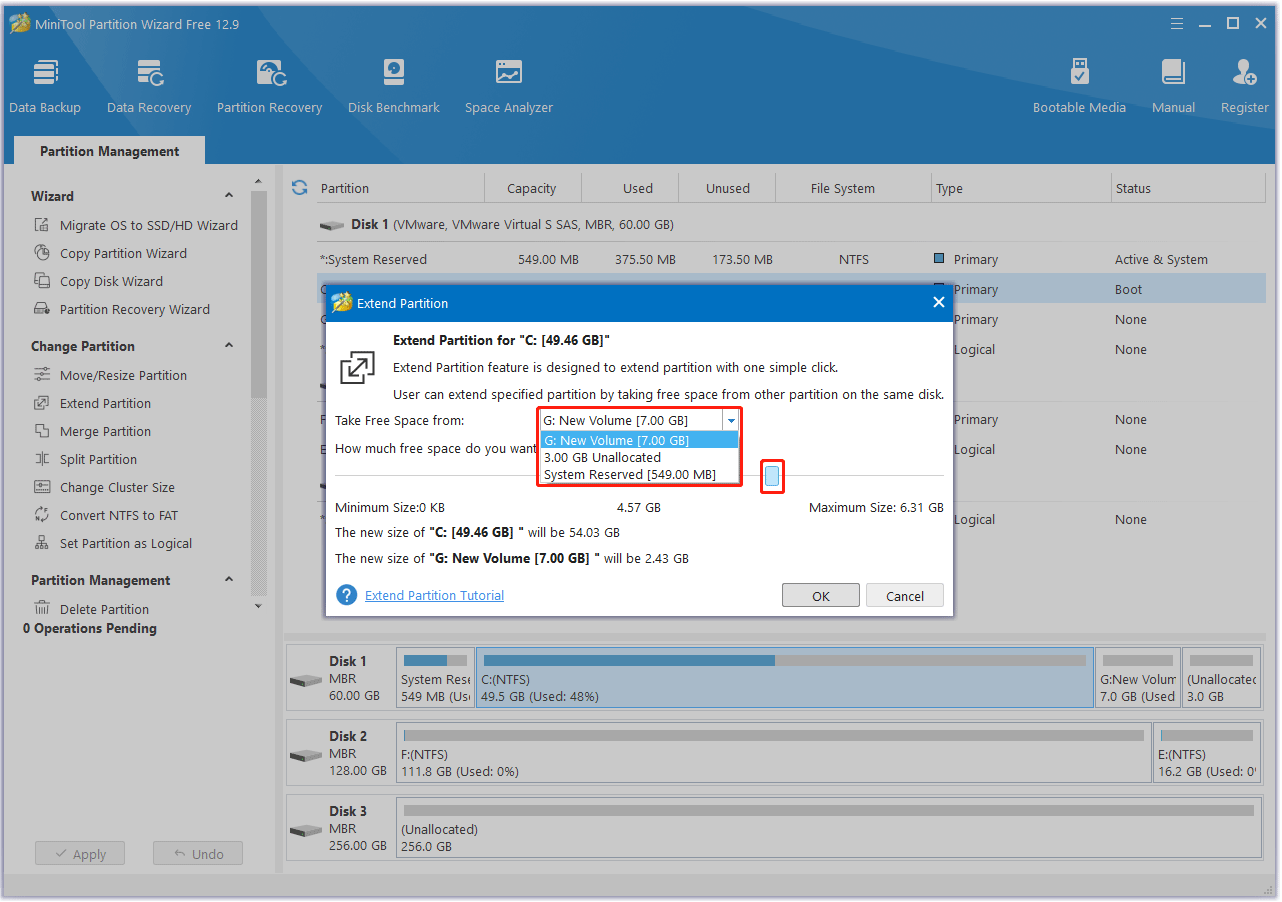
You install games and dev tools on C: until updates refuse to run. Moving space from another volume is tempting — first capture backups, then shrink the donor partition from the correct side, then extend C: with contiguous free space.
Resize C: partition guide
You want the new SSD to boot identically. Disk clone workflows differ from file copy: hidden recovery partitions and EFI system partitions matter. Verify boot order and firmware settings after the clone.
Clone disk overview guide
External drives that disconnect under load can leave file systems inconsistent. After hardware is stable, scan the disk, avoid writing new data on the affected volume, and explore recovery options before reformatting.
Recover lost partition guideWhile operations run
Queued work is only half the story. Windows still schedules updates, security software touches removable volumes, and power plans treat "almost idle" as sleep. Stack these habits with your backups — they are cheaper than rehearsing recovery.
Disk Management, a second partition product, and full-disk imagers can each hold metadata locks. Finish or close competing tools before Apply so "volume in use" stays a rare exception rather than a mystery hunt.
Major Windows upgrades and driver installs restart services and remount volumes. If Apply already touched system partitions, reboot on purpose, confirm boot, then schedule unrelated upgrades instead of threading them through the same night.
A USB micro-B connector that looks seated can wobble under vibration. Use direct ports, strain relief on long runs, and treat battery-only laptops as a planned power-loss drill — not as the default for multi-hour moves.
For full timelines that stack bad luck with policy, skim the composite stories page before you reuse someone else's checklist.
Stop signs
Partition tools can queue almost anything; Windows and hardware still get a vote. Treat these patterns as hard pauses: fix the environment first, then return to layout changes with backups intact.
Surface tests and clone jobs stress every sector. If the disk is already reporting errors, imaging or replacing hardware comes before cosmetic partition moves — otherwise you risk hours of work ending in unreadable sectors mid-operation.
USB docks renumber when cables change. Close ambiguity with labels in Disk Management, unplug extras during system-disk jobs, and never rely on drive letters alone when multiple enclosures are attached.
Consumer partition flows assume basic disks. If Disk Management shows Dynamic, Storage Spaces, or OEM RAID semantics you do not understand, research Windows limits first — converting types is destructive-risky, not a quick cleanup click.
Firmware and filter drivers can change mid-session. Finish updates on AC power, then reboot cleanly before long offline operations. A forced sleep during Apply is the kind of story that starts with "it was almost done."
If several signals stack, the boring answer is usually correct: image what matters, replace suspect hardware, then partition from a stable baseline. The FAQ collects shorter answers for BitLocker, boot paths, and extend failures.
Vocabulary
Same labels appear in Disk Management, vendor BIOS, and third-party disk tools — align on definitions so you do not confuse a volume action with a whole-disk action.
For scheme conversions and boot repair wording, pair this list with the MBR vs GPT article and the FAQ boot section.
Resilience
A real restore story assumes you can roll back. Not every backup can restore a boot layout, hidden volumes, or BitLocker metadata — know which layer you actually captured before you shrink or clone.
Imaging tools that copy sectors or partition-aware archives are closest to undo for layout work. They weigh more disk space and time, but they are the usual answer when EFI, recovery, and C: must return together.
Robocopy, archives, or "copy the project folder" plans protect data you can name. They do not reconstruct partition tables — pair them with imaging when the job touches system layout, not only documents.
OneDrive-style sync skips plenty of paths, respects quotas, and may churn during long disk jobs. Treat cloud as an extra copy of selected files, never as proof you can recover a mangled partition map.
If you only have one of the three, add the missing layer before Apply — or narrow the operation until your restore story matches the risk.
See the app
Watch how the main window is organized: disk list, partition map, and action panel. Use captions in your head — pause when you see an operation you plan to run later.
Orientation clip from your product media folder, if your build includes one.
Editions & policy
Partition math is the same across SKUs: unallocated space still has to sit on the correct edge before extend. What moves is where Windows surfaces BitLocker, Device Encryption, and some backup hooks — plan UI paths from your actual edition and management state.
Group Policy, mobile device management, and OEM images can remove shrink targets or block writes you expect from consumer screenshots. If menus differ wildly, that is policy — not a bug in the disk map.
Retail Home often exposes a lighter path tied to your Microsoft account while Pro and Enterprise lean on traditional protectors and policy. The partition tool still queues the same moves once protectors agree.
Translated labels rename recovery and OEM partitions in the UI, so screenshot matching is slower than reading size, order, and file system lines. Cross-language forums need that discipline.
How the UI thinks
Once these click, the same screens start to feel predictable: you know where to look for risk, what will wait in a queue, and when the tool is asking for a reboot instead of a second click.
Many changes are staged first. The bottom panel is your contract — read each line, estimate total time, and expect that power loss before Apply can leave the disk half-updated. Undo is your friend while everything is still pending.
Operations on Disk 1 can touch several drive letters at once. When something warns about the whole disk, assume partitions you forgot about — recovery, OEM, or EFI — are in scope. Name disks in your notes, not just C: and D:.
BitLocker, Secure Boot, and UEFI paths do not vanish because a partition tool is open. If a step needs decryption or a firmware setting, do that work first; otherwise the UI may look willing while the environment will block the finish.
Workflow
Write down current sizes, drive letters, and whether BitLocker is on. Screenshot the disk layout so you can compare after changes.
Add operations to the pending list and read the bottom summary. Long jobs on system disks may require a reboot — plan a maintenance window.
After changes, confirm Windows boots, volumes mount, and restore points or backups still open. Keep rescue media available for one cold boot test.
File systems
Partition tools ask you to pick a file system whenever you create or format a volume. The wrong choice does not always show up until you move huge files, dual-boot another OS, or try to shrink a system volume that depends on NTFS features.
Default for internal drives: journaling, compression, encryption hooks, and large single files. Most merge, shrink, and extend workflows assume NTFS on consumer volumes — read the guide before converting away from it.
Common on SD cards and external SSDs you share with macOS or Linux. Lightweight metadata and big file support, but not what Windows expects for an OS volume — use it for data shuttles, not as a boot replacement for NTFS without research.
Older flash drives and game-console compatibility often mean FAT32, which caps individual file size around 4 GB. UEFI firmware still reads a small FAT32 EFI system partition — that is a boot layout detail, not a license to format your whole disk as FAT32 for daily Windows work.
Changing a file system in place usually means erase-and-restore from backup. If you only need space, triage with cleanup and resize guides before you reformat a volume you still need.
After Apply
Apply finishing without errors is only halfway. A short checklist catches wrong-disk layouts, encryption surprises, and backup gaps while you still remember what changed.
Verification checklist
Hybrid shutdown and fast startup can hide boot-path problems. Power off fully once, then boot and confirm the expected OS volume, drive letters, and external disks mount where you expect.
Open Disk Management or your partition manager again and compare free space, partition order, and labels to the screenshot you took pre-change. Typos in notes are cheaper to fix than assumptions after more writes land on the disk.
If a volume was protected, confirm Windows asks for recovery keys only when you intend — not on every boot. Mismatched protector state after a resize is a stop-and-read moment, not a dismiss-and-forget click.
Trigger a quick test backup or confirm your imaging tool sees the new layout. Structural changes sometimes break paths or exclude drives until you update the job — better to learn that tonight than next month.
If any box fails, treat the machine as still in maintenance: capture logs, avoid heavy new writes on suspect volumes, and use the FAQ boot and BitLocker entries before you queue another layout pass.
FAQ: boot, BitLocker, and extend failuresBench setup
None of this replaces backups — it reduces panic when something asks for a keyboard, a URL, or a second device while your main PC is busy moving sectors.
Vendor recovery USB, Windows installer, or a bootable maintenance stick that already works on this firmware. Test boot once on a quiet evening so you are not reading BIOS menus for the first time during a grey-screen reboot.
Motherboard name, disk model, and where you stored BitLocker PDFs. LTE on a phone beats guessing Wi‑Fi drivers when the desktop is mid-operation and you need documentation.
Keep the FAQ and the relevant article open where you can scroll without minimizing the disk tool. Tab-hunting during Apply is how steps get skipped.
Agree on "no unplugging that outlet" time. Interruptions that yank power to external enclosures are more common than malware during home disk migrations.
Scope
Articles here are editorial field notes: they synthesize common Windows disk layouts and typical partition-manager workflows, but they cannot see your cabling, SSD health, or corporate change windows.
Nothing on these pages is personalized technical support — when downtime or data value is high, pause and involve whoever approves maintenance in your environment.
Get started
This site does not host installers. When you fetch any disk utility, treat every download as untrusted until you verify the publisher shown by your OS and any checksums you can confirm.
Tip: create a restore point or full-image backup before structural changes on production disks.