
Resize the Windows system partition without guessing
Most failed extends are really geometry problems: the free space is not next to C:, BitLocker is still on, or a recovery partition sits in the way. This article walks the decision tree. Educational only — UI labels differ by product and edition.
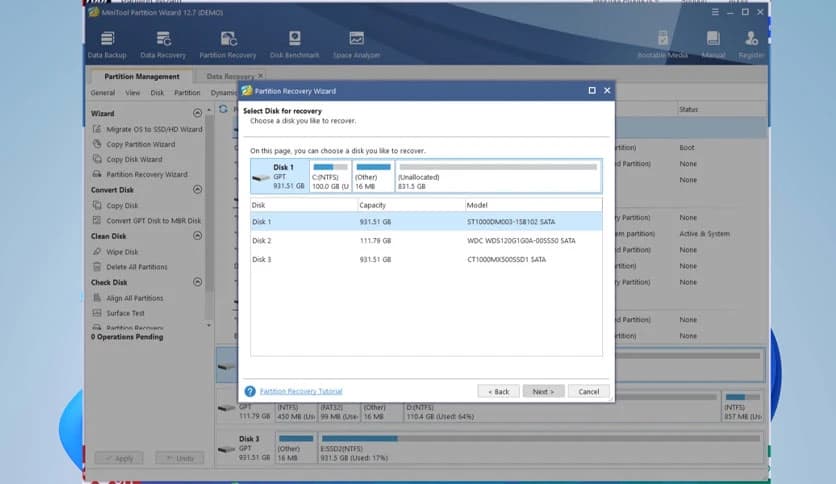
Map the disk before touching sliders
Open a partition manager, note every volume's order left-to-right, and identify recovery or OEM partitions. Screenshot the layout. If you use BitLocker, resolve protector state before structural edits.
Shrink from the correct side
To create unallocated space adjacent to C:, you usually shrink the partition immediately after C: from its left edge (toward C:). Tools describe this differently — read the wizard's direction labels carefully.
Extend only when space is touching
Extend volume operations need unallocated space directly after the target volume on basic MBR/GPT layouts. If another partition blocks you, move or shrink that partition first, then retry extend.
Apply during a quiet window
Close disk-heavy apps, disable sleep, and keep AC power on laptops. If a reboot is listed, expect a longer black screen — do not force power off mid-operation.